`
* You can crop the image directly inline
* You can put hotspots and markers on the actual image
## Configuration
| Name | Type | Description |
|--------------------------------|---------|------------------------------------------------------------------------------------------------------------------------------------------------------------------------------------------------------------------------------------------|
| `title` | string | You can give the image widget in editmode a title. Using the new style (**ExtJS 6**) this title is displayed as a tooltip. |
| `width` | integer | Width of the image in pixel |
| `height` | integer | Height of the image in pixel |
| `thumbnail` | string | Name of the configured thumbnail which should be used |
| `hidetext` | boolean | Hides the input for the ALT-text in editmode |
| `reload` | boolean | Set true to reload the page in editmode after updating the image |
| `minWidth` | integer | Min. width of the image (in pixel) |
| `minHeight` | integer | Min. height of the image (in pixel) |
| `ratioX` | integer | Set width in pixel to make sure a fixed aspect ratio size is choosen in the crop tool. Must be used with ratioY. |
| `ratioY` | integer | Set height in pixel to make sure a fixed aspect ratio size is choosen in the crop tool. Must be used with ratioX. |
| `attributes` | array | Custom attributes for the ![]() tag - this can be used to pass custom attributes (not w3c) |
| `removeAttributes` | array | You can remove standard attributes using this configuration, e.g. `"removeAttributes" => ["controls","poster"]` |
| `uploadPath` | string | Target path for (inline) uploaded images |
| `highResolution` | float | Factor the thumbnail dimensions should be multiplied with (html attributes width and height contain the original dimensions ... used for **Retina* displays, print, ...) |
| `disableWidthHeightAttributes` | bool | Width & height attributes are set automatically by Pimcore, to avoid this set this option (eg. to true => isset check) |
| `disableAutoTitle` | bool | Set to true, to disable the automatically generated title attribute (containing title and copyright from the origin image) |
| `disableAutoAlt` | bool | Set to true, to disable the automatically generated alt attribute |
| `disableAutoCopyright` | bool | Set to true, to disable the automatically appended copyright info (alt & title attribute) |
| `dropClass` | string | This option can be used to add multiple alternative drop-targets and context menus on custom HTML elements in your code.
tag - this can be used to pass custom attributes (not w3c) |
| `removeAttributes` | array | You can remove standard attributes using this configuration, e.g. `"removeAttributes" => ["controls","poster"]` |
| `uploadPath` | string | Target path for (inline) uploaded images |
| `highResolution` | float | Factor the thumbnail dimensions should be multiplied with (html attributes width and height contain the original dimensions ... used for **Retina* displays, print, ...) |
| `disableWidthHeightAttributes` | bool | Width & height attributes are set automatically by Pimcore, to avoid this set this option (eg. to true => isset check) |
| `disableAutoTitle` | bool | Set to true, to disable the automatically generated title attribute (containing title and copyright from the origin image) |
| `disableAutoAlt` | bool | Set to true, to disable the automatically generated alt attribute |
| `disableAutoCopyright` | bool | Set to true, to disable the automatically appended copyright info (alt & title attribute) |
| `dropClass` | string | This option can be used to add multiple alternative drop-targets and context menus on custom HTML elements in your code.
Just add the class specified here also to custom HTML elements and they will get a drop target too. |
| `deferred` | bool | Set to false to disable deferred (on demand) thumbnail rendering |
| `class` | string | A CSS class that is added to the surrounding container of this element in editmode |
You can also pass every valid `![]() ` tag attribute ([w3.org Image](http://www.w3.org/TR/html401/struct/objects.html#edef-IMG)), such as: `class`, `style`
## Methods
| Name | Arguments | Return | Description |
|--------------------------|----------------------|---------------------------------------|-------------------------------------------------------------------------|
| `getThumbnail($name)` | (string/array) $name | Pimcore\Model\Asset\Image\Thumbnail | Get a specific thumbnail of the image |
| `getText()` / `getAlt()` | - | string, alt/title text from the image | The entered alternative text in the widget |
| `getSrc()` | - | string, absolute path to the image | The path to the original image which is referenced |
| `getImage()` | - | \Pimcore\Model\Asset\Image | The asset object which is referenced (`\Pimcore\Model\Asset\Image`) |
| `getHotspots()` | - | array | Returns the hotspot data (see example below) |
| `getMarker()` | - | array | Returns the marker data (see example below) |
| `isEmpty()` | - | bool | Whether the editable is empty or not |
## Examples
### Basic usage
` tag attribute ([w3.org Image](http://www.w3.org/TR/html401/struct/objects.html#edef-IMG)), such as: `class`, `style`
## Methods
| Name | Arguments | Return | Description |
|--------------------------|----------------------|---------------------------------------|-------------------------------------------------------------------------|
| `getThumbnail($name)` | (string/array) $name | Pimcore\Model\Asset\Image\Thumbnail | Get a specific thumbnail of the image |
| `getText()` / `getAlt()` | - | string, alt/title text from the image | The entered alternative text in the widget |
| `getSrc()` | - | string, absolute path to the image | The path to the original image which is referenced |
| `getImage()` | - | \Pimcore\Model\Asset\Image | The asset object which is referenced (`\Pimcore\Model\Asset\Image`) |
| `getHotspots()` | - | array | Returns the hotspot data (see example below) |
| `getMarker()` | - | array | Returns the marker data (see example below) |
| `isEmpty()` | - | bool | Whether the editable is empty or not |
## Examples
### Basic usage
```php
image("myImage"); ?>
```
```twig
{{ pimcore_image("myImage") }}
```
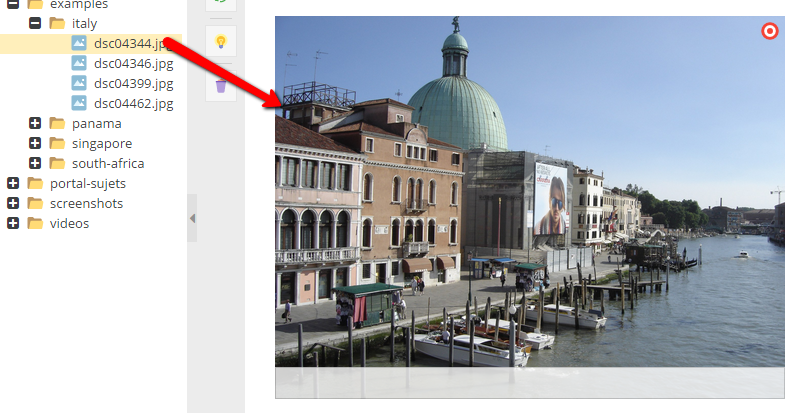
The code above generates an image area in the backend and displays the image at the frontend.
The empty backend area:

The filled backend area:
### Advanced Usage
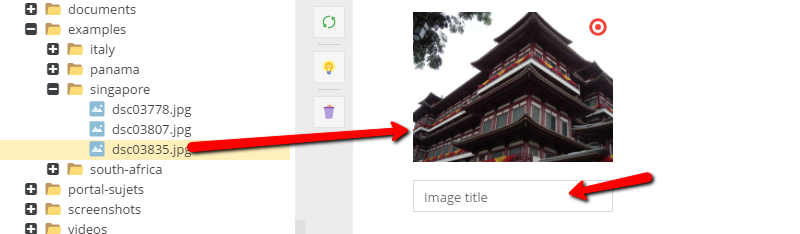
In the example below you can see how to add a title and specify size of the image area.
Note that if you use the thumbnail argument, the rendered image on the frontend will use the specified thumbnail.
Learn more about thumbnails here: [Image Thumbnails](../../04_Assets/03_Working_with_Thumbnails/01_Image_Thumbnails.md).
```php
image("myImage", [
"title" => "Drag your image here",
"width" => 200,
"height" => 200,
"thumbnail" => "contentimages"
]); ?>
```
```twig
{{ pimcore_image("myImage", {
"title": "Drag your image here",
"width": 200,
"height": 200,
"thumbnail": "contentimages"
}) }}
```
###### Backend Preview
### An Example with a Direct Thumbnail Configuration
You can also change the thumbnail configuration:
```php
image("myImage", [
"title" => "Drag your image here",
"width" => 200,
"height" => 200,
"thumbnail" => [
"width" => 200,
"height" => 200,
"interlace" => true,
"quality" => 90
]
]); ?>
```
```twig
{{ pimcore_image("myImage", {
"title": "Drag your image here",
"width": 200,
"height": 200,
"thumbnail": {
"width": 200,
"height": 200,
"interlace": true,
"quality": 90
}
}) }}
```
### An Example Using Custom Attributes
```php
image("myImage", [
"thumbnail" => "content",
"attributes" => [
"custom-attr" => "value",
"data-role" => "image"
]
]) ?>
```
```twig
{{ pimcore_image("myImage", {
"thumbnail": "content",
"attributes": {
"custom-attr": "value",
"data-role": "image"
}
}) }}
```
And this is how the rendered html looks: ` `
### Other Advanced Examples
`
### Other Advanced Examples
```php
// get retina image
image("myImage", [
"thumbnail" => [
"width" => 200,
"height" => 200
],
"highResolution" => 2
]); ?>
// will output

// custom image tag (thumbnail objects)
editmode): ?>
image("myImage", ["thumbnail" => "myThumbnail"]); ?>
image("myImage")->getThumbnail("myThumbnail"); ?>

// disable automatic width and height attributes
image("myImage", [
"thumbnail" => "exampleScaleWidth",
"disableWidthHeightAttributes" => true
]) ?>
// custom drop targets
My first alternative drop target
image("image", [
"thumbnail" => "contentfullimage",
"dropClass" => "myCustomImageDropTarget"
]) ?>
My second alternative drop target
```
```twig
{# Get retina image #}
{{ pimcore_image("myImage", {
"thumbnail": {
"width": 200,
"height": 200
},
"highResolution": 2
}) }}
{# Will output
#}
{# Custom image tag (thumbnail objects) #}
{% if editmode %}
{{ pimcore_image("myImage",{"thumbnail": "myThumbnail"}) }}
{% else %}
{% set thumbnail = pimcore_image("myImage").getThumbnail("myThumbnail") %}

{% endif %}
{# Disable automatic width and height attributes #}
{{ pimcore_image("myImage", {
"thumbnail": "exampleScaleWidth",
"disableWidthHeightAttributes": true
}) }}
{# Custom drop targets #}
My first alternative drop target
{{ pimcore_image("image",{
"thumbnail": "contentfullimage",
"dropClass": "myCustomImageDropTarget"
}) }}
My second alternative drop target
```
```php
image("myImage", [
"title" => "Drag your image here",
"width" => 400,
"height" => 400,
"thumbnail" => "content"
]); ?>
editmode): ?>
image("myImage")->getHotspots()) {
\Zend_Debug::dump($this->image("myImage")->getHotspots());
}
if($this->image("myImage")->getMarker()) {
\Zend_Debug::dump($this->image("myImage")->getMarker());
}
?>
```
```twig
{{ pimcore_image("myImage",{
"title": "Drag your image here",
"width": 400,
"height": 400,
"thumbnail": "content"
}) }}
{% if not editmode %}
{% set image = pimcore_image("myImage") %}
{% if image.getHotspots() %}
{{ dump(image.getHotspots()) }}
{% endif %}
{% if image.getMarker() %}
{{ dump(image.getMarker()) }}
{% endif %}
{% endif %}
```